Viewing and Editing SCADA Polling Device Details
Note: This feature is currently available only in 32-bit versions of the software.
Use the View polling device option to view or edit details of the SCADA polling device associated with the selected device (or station meter) Node. You can view the SCADA device ID and facility ID, view or edit DDS data groups, or view communication data bytes for the polling device linked to the selected device Node. This information can be helpful for editing data groups, auditing information, or troubleshooting purposes.
Node polling device details can be viewed or edited by users with the required authorization level.
Viewing and Editing an FMS Node's SCADA Polling Device Details
Use the following method to access the FMS Polling Device dialog box, to view or edit details for the SCADA polling device associated with the selected device Node.
Viewing SCADA Polling Device Details
The FMS Polling Device dialog box showing the SCADA polling device details associated with the selected device Node can be accessed through FMS Explorer.
To View an FMS Node's SCADA Polling Device Details
- Open FMS Explorer.
- Do any of the following to access the FMS Node's SCADA polling device details.
- On any Node chooser (stand-alone or embedded), right-click on a device Node name to access the context menu, and then click View polling device to access the FMS Polling Device dialog box for the selected Node.
- In the data grid of the Dashboard control, right-click on a device Node record to access the context menu, and then click View polling device to access the FMS Polling Device dialog box for the selected Node.
- In the data grid of the Exceptions control, right-click on a device Node record to access the context menu, and then click View polling device to access the FMS Polling Device dialog box for the selected Node.
- On the Session menu, type a device Node name into the text box. Alternatively, select a Session Node elsewhere in the user interface to populate the text box. Click
 Polling device in the Node section of the ribbon to access the FMS Polling Device dialog box for the currently displayed Session Node.
 - The FMS Polling Device dialog box will appear.
|
FMS Polling Device |
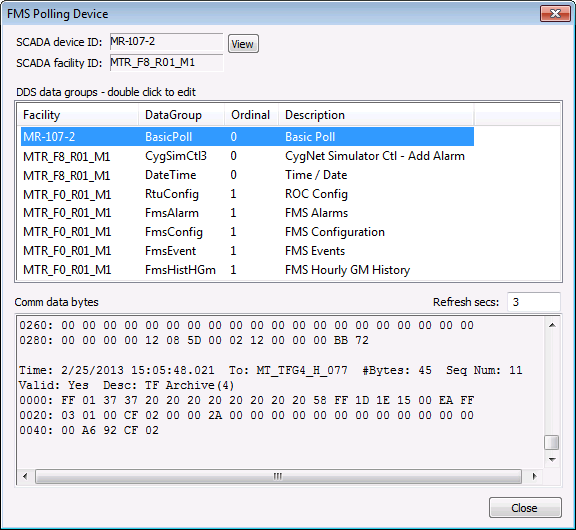
The FMS Polling Device dialog box showing the SCADA polling device details can also be accessed through the Flow Measurement Service in CygNet Explorer. See Viewing and Editing SCADA Properties in CygNet Measurement for more information.
Editing SCADA Polling Device Details
Once you have accessed an FMS Node's SCADA polling device details, you also have the option to perform edits, if you have the required authorization level.
See Remote Devices for your device type for more detailed information about SCADA device data groups.
Note: Before editing any data groups, recognize that EFM (electronic flow measurement, e.g. FMS and FMS Legacy) data groups may have dependencies on non-EFM data groups. See EFM Data Items and the documents in the Remote Devices section for the specific EIE used by your device for more information about its EFM data groups, data group dependencies, and usage notes. Once you have verified the information, you can optionally perform edits to the device.


